The noindex tag: what it does, when to use it, and how to add, check or remove it
A noindex tag tells Google not to show a page in search. See the exact code, when to use it, how it differs from robots.txt, and how to find and remove one.


A noindex tag is a rule in a page's HTML or HTTP headers that tells search engines not to show that page in search results. The most common form is <meta name="robots" content="noindex"> in the <head>. When Google crawls the page and reads it, Google drops the page from its results, even if other sites link to it.
It's one of the most useful tags in SEO and one of the most dangerous. Used on purpose, it keeps thank-you pages, internal search results and staging sites out of Google. Left on by accident, after a site launch or a plugin update, it quietly removes your most important pages.
This guide covers the exact syntax (meta tag and X-Robots-Tag header), how noindex differs from nofollow, robots.txt and canonical tags, when to use it, how to add it in WordPress, Shopify, Wix, Squarespace and Next.js, and how to find and remove one that shouldn't be there.
What is a noindex tag, and what does it do?
A noindex tag is an instruction that tells search engines not to include a page in their search results. Google's noindex documentation says that when Googlebot extracts the rule, "Google will drop that page entirely from Google Search results, regardless of whether other sites link to it." The page itself stays online.
Three things noindex does not do:
- It doesn't block visitors. Anyone with the link can still open the page. For private content, use a password or login.
- It doesn't stop crawling. Google still has to fetch the page to read the tag.
- It doesn't work instantly. The page leaves search results only after the next crawl.
Noindex also keeps a page out of Google's AI features, and out of the snippet entirely, so title and meta description work on a noindexed page has no effect. Google's guide to AI features and your website says a page must be indexed to be "shown as a supporting link in AI Overviews or AI Mode."
What does the noindex code look like?
The standard noindex code is one meta tag in the page's <head>: <meta name="robots" content="noindex">. To target Google only, replace robots with googlebot. For files without HTML, such as PDFs, send the same rule as an HTTP response header: X-Robots-Tag: noindex.
The noindex meta tag in HTML
<!DOCTYPE html>
<html lang="en">
<head>
  <meta name="robots" content="noindex">
  <title>Thank you for your booking | Bayside Plumbing</title>
</head>
Google's robots meta tag specification notes that "both the name and the content attributes are case-insensitive," so NOINDEX works too. Where to put the noindex tag: in the <head>. Google says it will also respect a robots meta tag in the body, but other search engines may not.
Targeting one search engine
| Tag | Applies to |
|---|---|
<meta name="robots" content="noindex"> | All search engines that support noindex |
<meta name="googlebot" content="noindex"> | Google only |
<meta name="bingbot" content="noindex"> | Bing only |
Yandex's meta tag documentation lists noindex, nofollow and none for both the meta tag and the X-Robots-Tag header, so the standard tag works there as well. Google supports two user-agent names in the meta tag, googlebot and googlebot-news, and ignores others. Bing's robots meta tag page says you can replace robots with bingbot to target Bing.
The X-Robots-Tag noindex header
Any rule you can put in a robots meta tag can also go in an X-Robots-Tag HTTP header. That's the only option for non-HTML files:
HTTP/1.1 200 OK
X-Robots-Tag: noindex
To noindex every PDF on a site, Google gives these server examples:
# Apache (.htaccess or httpd.conf)
<Files ~ "\.pdf$">
  Header set X-Robots-Tag "noindex, nofollow"
</Files>

# NGINX
location ~* \.pdf$ {
  add_header X-Robots-Tag "noindex, nofollow";
}
If your site sits behind a CDN such as Cloudflare, you can add the same response header with the CDN's header rules instead of editing the server.
What's the difference between noindex, nofollow, follow and none?
Noindex controls whether the page appears in search. Nofollow controls whether search engines follow the links on the page. Follow is the default and doesn't need to be written. None is shorthand for noindex, nofollow. You can combine rules with commas in one tag or use separate tags.
| Robots meta value | Page in search? | Links followed? | Typical use |
|---|---|---|---|
(no tag), all or index, follow | Yes | Yes | Every normal page |
noindex | No | Yes (default) | Thank-you pages, internal search, thin archives |
noindex, follow | No | Yes | Same as noindex, written out |
nofollow | Yes | No | Pages full of links you don't vouch for |
noindex, nofollow or none | No | No | Staging sites, private tools |
What does noindex, follow mean? Exactly the same as noindex alone: keep the page out of results, but follow its links, because following is the default. Google hasn't documented whether links on a page that stays noindexed for a long time keep passing value, so put links you care about on indexable pages too.
When rules conflict, Google applies "the more restrictive rule." If one tag says nofollow for all robots and another says noindex for Googlebot, Google treats the page as noindex, nofollow: it sums the negative rules.
Nofollow in a robots meta tag covers every link on the page. It's different from rel="nofollow" on a single link, which applies to that one link only.
Noindex vs robots.txt vs canonical: which should you use?
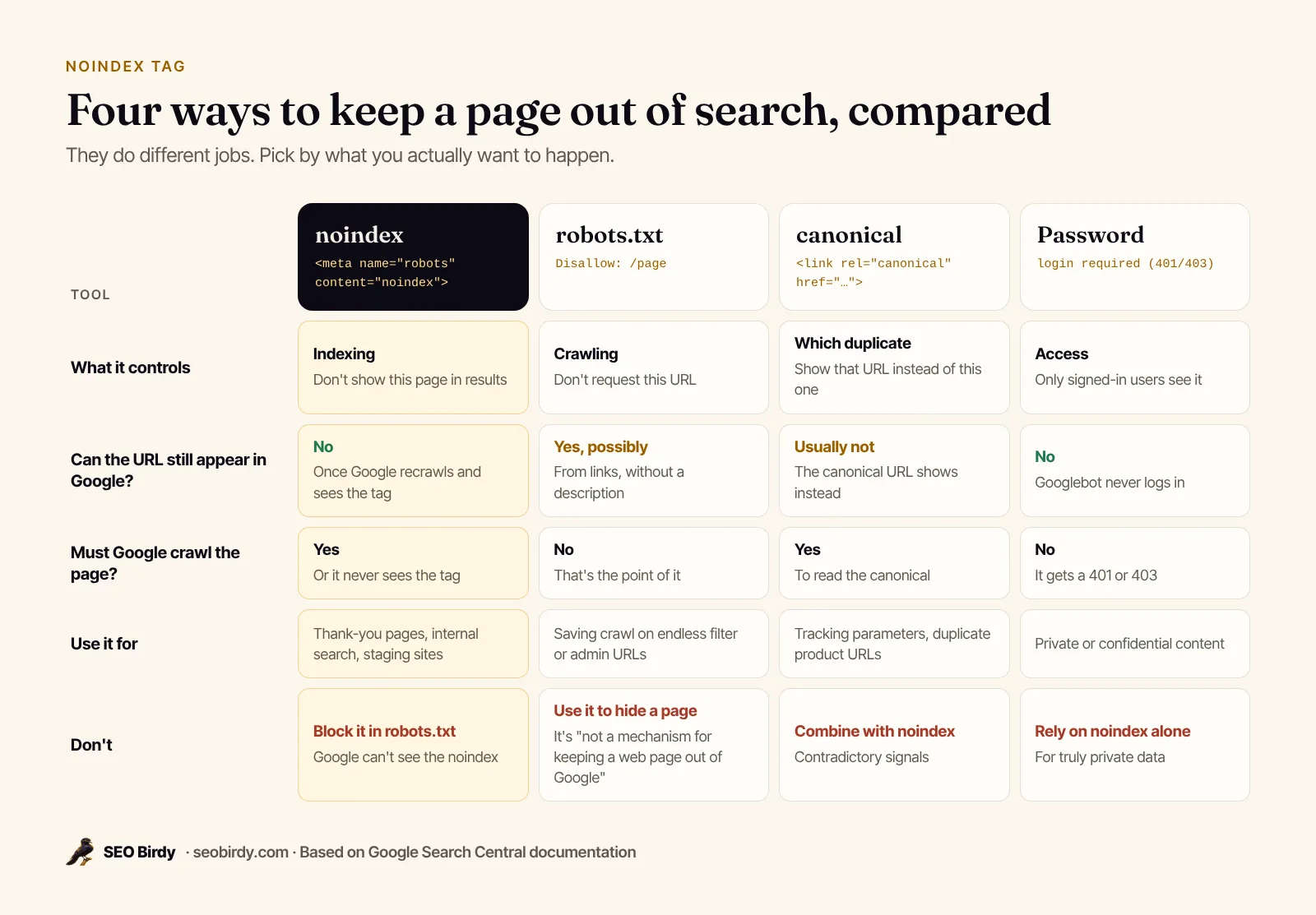
Use noindex to keep a page out of search results, robots.txt to stop crawlers requesting URLs (mostly to save crawl capacity), and a canonical tag to tell Google which of several duplicate URLs to show. They solve different problems, and combining the wrong two can backfire.
The robots.txt trap
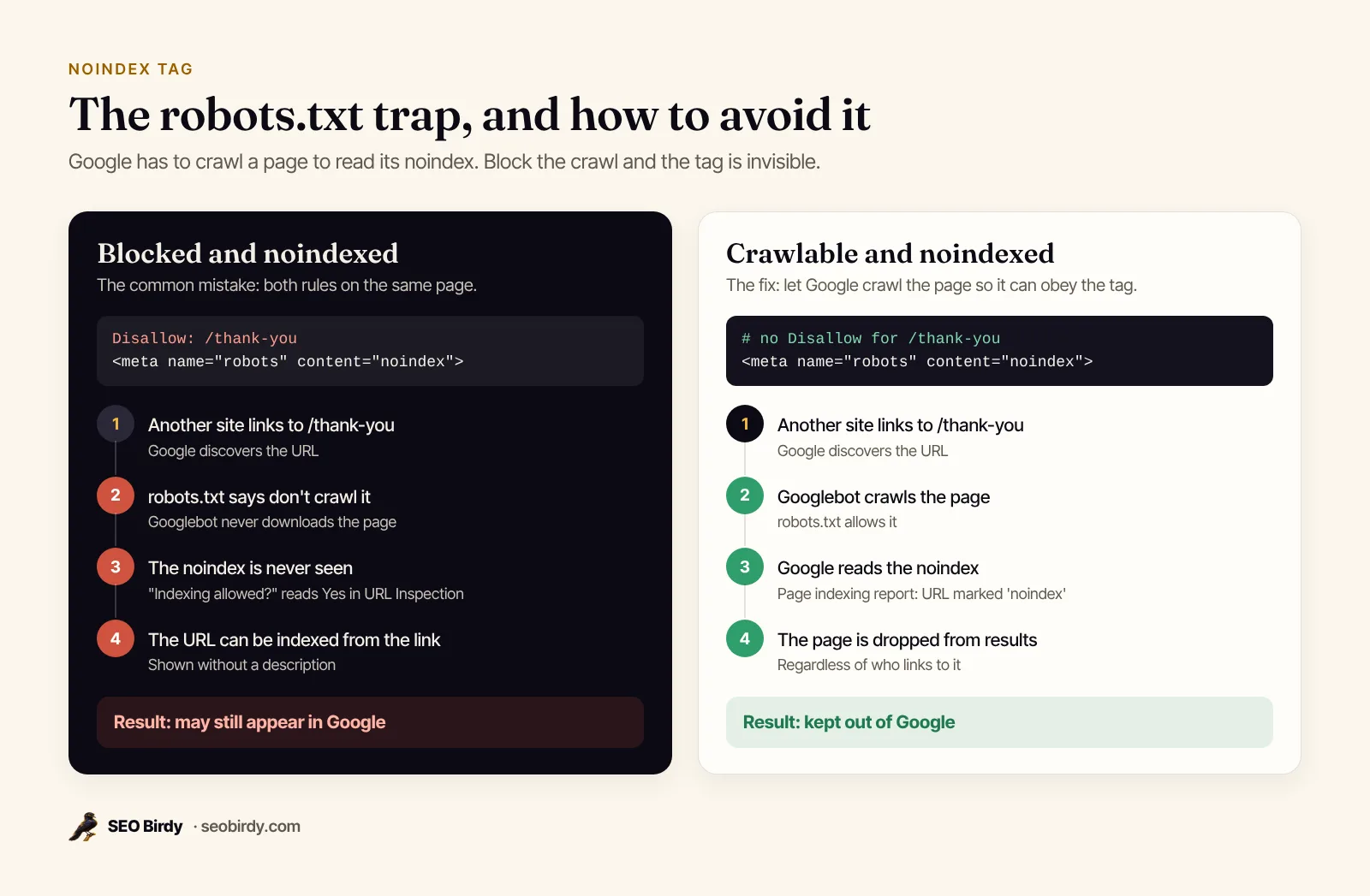
A classic noindex mistake is blocking the same page in robots.txt. Google's documentation is direct: "If the page is blocked by a robots.txt file or the crawler can't access the page, the crawler will never see the noindex rule, and the page can still appear in search results, for example if other pages link to it."
Google also stopped supporting noindex lines inside robots.txt files on September 1, 2019. A Noindex: line in robots.txt does nothing in Google today.
Noindex vs canonical
For duplicates, use a canonical tag, not noindex. Google's canonicalization guide says it doesn't recommend noindex "to prevent selection of a canonical page within a single site, because it will completely block the page from Search." A canonical consolidates signals to the preferred URL; noindex throws them away. Don't combine a canonical pointing elsewhere with noindex on the same page, either; the signals contradict each other.
Noindex vs 404 vs password
If the page shouldn't exist, delete it and return a 404 or 410. If it holds private information, put it behind a login: Google's removal guide notes that noindex only blocks search results, and "users and other search engines that don't support noindex can still access your page."
When should you use a noindex tag?
Use noindex on pages that should stay live for visitors but have no value as a search result: confirmation and thank-you pages, cart and checkout steps, internal search results, login and account pages, thin tag or author archives, campaign landing pages that duplicate a service page, and an entire staging or development site.
| Noindex these | Keep these indexable |
|---|---|
| Thank-you and booking confirmation pages | Homepage |
| Cart, checkout, account and login pages | Service and location pages |
| Internal site search results | Blog posts and guides |
| Thin tag, date and author archives | Category pages with real content |
| Paid-ad landing pages that copy a service page | Contact and about pages |
| Staging and development sites | Paginated series (use normal links, not noindex) |
Two cases need care. Paginated pages (page 2, 3, 4 of a blog or category) usually should stay indexable so Google can reach the items on them; Google's pagination guide recommends giving each page its own URL. Privacy policies and terms are fine to leave indexed; they rarely rank for anything, and people do occasionally search for them.
Noindexed pages also shouldn't be in your XML sitemap. A sitemap is the list of URLs you want in search; including noindexed ones contradicts it.
How do you add a noindex tag?
Add <meta name="robots" content="noindex"> to the <head> of the page. In a CMS, use the page's SEO settings instead: WordPress (through an SEO plugin or a small code snippet), Shopify (a line of Liquid in your theme), Wix and Squarespace (a toggle in page settings), and Next.js (the robots field in metadata).
WordPress
For a single page, the easiest way is an SEO plugin's "allow search engines to show this page" setting in the editor. To noindex a page in WordPress without a plugin, use the wp_robots filter, available since WordPress 5.7, in a child theme's functions.php:
add_filter( 'wp_robots', function ( $robots ) {
    if ( is_page( 'thank-you' ) ) {
        $robots['noindex'] = true;
    }
    return $robots;
} );
To noindex a whole site, such as a staging copy, tick Settings → Reading → Discourage search engines from indexing this site. The WordPress documentation says this prints noindex, nofollow on every page. It's also an easy setting to leave on by mistake after a launch.
Shopify
Shopify's help center says to edit your theme code: go to Online Store → Themes → Edit code, open theme.liquid in the layout folder, and paste this in the <head>, replacing the handle with your page's:
{% if handle contains 'page-handle-you-want-to-exclude' %}
<meta name="robots" content="noindex">
{% endif %}
Wix and Squarespace
In Wix, open Pages & Menu, click the page's More Actions icon, choose SEO basics and turn off Let search engines index this page, as Wix's help article describes. In Squarespace, open the page's settings, go to the SEO tab and switch on Hide page from search results; Squarespace's guide to hiding pages notes that homepages don't have this toggle.
Next.js and React
In the Next.js App Router, set robots in the page's metadata:
export const metadata = {
  robots: { index: false, follow: true },
};
Next.js renders <meta name="robots" content="noindex, follow">. In a client-rendered React app, put noindex in the server-rendered HTML rather than adding or removing it with JavaScript: Google's JavaScript SEO guide warns that when it sees noindex it "may skip rendering and JavaScript execution," so a script that removes the tag may never run.
How do you check if a page has a noindex tag?
View the page source and search for "noindex," then check the HTTP headers for an X-Robots-Tag, because a header noindex never shows in the HTML. For Google's view, run the URL through URL Inspection in Search Console and look at "Indexing allowed?" To check many pages at once, use the Page indexing report or a site crawler.
- Page source. Open the page, press Ctrl+U (Cmd+Option+U on a Mac) and search for
noindex. Check for bothname="robots"andname="googlebot". - Response headers. Run
curl -I https://www.example.com/pageand look for anX-Robots-Tagline. In Chrome, DevTools → Network → click the page → Headers works too. - URL Inspection. In Search Console, inspect the URL. Under the page indexing details, "Indexing allowed?" shows "No" with the reason, such as noindex detected in the robots meta tag or the X-Robots-Tag header. Click Test live URL to check the current version.
- The whole site, in bulk. The Page indexing report lists every URL Google found with a noindex. Our free Website SEO Audit checks one page's meta tag and X-Robots-Tag header in under a minute.
What does "Excluded by 'noindex' tag" mean in Search Console?
It means Google crawled the page, found a noindex rule in a robots meta tag or X-Robots-Tag header, and left the page out of its index. Google's current Page indexing report help calls this status "URL marked 'noindex'"; "Excluded by 'noindex' tag" is the older wording many people still search for.
Google's advice is blunt: if you don't want the page indexed, there's nothing to do; if you do, "you should remove the 'noindex' directive." Read the list of affected URLs and sort them into two groups:
- Intentional. Thank-you pages, cart, internal search. Nothing to fix.
- Accidental. Service pages, posts, products, the homepage. Find the source of the tag and remove it.
On WordPress, an unexpected list of noindexed pages usually traces back to the Reading setting, an SEO plugin's settings for a content type (all tags or all products set to hidden), or a page builder template. On Shopify, check theme.liquid and any SEO app for noindex rules. For every other status in the report, our guide to a page not indexed by Google explains what it means and how to fix it.
How do you remove a noindex tag and get the page back into Google?
Remove the tag or header at its source (page setting, plugin, theme or server), clear any caches, confirm with view source and curl -I that it's gone, then inspect the URL in Search Console, run a live test and click Request Indexing. Make sure the page is in your sitemap and linked from other pages.
Step by step:
- Find the source. Page-level SEO setting, a sitewide CMS setting, theme code, a plugin, or a server or CDN header rule.
- Remove it, and purge your site cache and CDN cache so the old HTML isn't served.
- Confirm it's gone in the page source and headers.
- Inspect the URL in Search Console and click Test live URL. "Indexing allowed?" should now read "Yes."
- Click Request Indexing. Google's URL Inspection help says indexing "typically takes only a day or so, but can take much longer in some cases."
- Check the sitemap and internal links, so Google has every reason to come back.
- If many pages were affected, fix them all, then open the "URL marked 'noindex'" issue in the Page indexing report and click Validate fix, which Google says typically takes up to about two weeks.
How long after removing noindex will Google index the page? Usually days, sometimes weeks. Google's recrawl guide says crawling "can take anywhere from a few days to a few weeks," and requesting it repeatedly won't make it faster. Rankings may take a little longer to settle than the indexing itself.
Need a page gone from Google today?
Noindex works at the next crawl, which may be weeks away for a rarely visited page. For something urgent, such as a page published by mistake, use the Removals tool in Search Console. Google's removal guide says it removes a page from results "within a day," and that requests last about six months, so add noindex (or delete the page) to make it permanent.
How do you stop an accidental noindex from hiding your site?
Check for noindex after every site launch, redesign, theme change and plugin update, and set up monitoring that checks your important pages daily and alerts you the moment a noindex tag or header appears. An accidental noindex costs traffic for every day it goes unnoticed, and Search Console only reports it after Google has recrawled the page.
If your whole site disappeared from Google overnight, check for a sitewide noindex first. The usual causes on small business sites:
- A staging site goes live with "Discourage search engines" still ticked or a sitewide
noindex, nofollowin the template. - An SEO plugin update or settings import flips a whole content type (all pages, all products) to hidden.
- A page builder template carries a noindex into every page made from it.
- A server or CDN rule meant for PDFs or a staging subdomain matches the live site and adds
X-Robots-Tag: noindexto everything.
SEO Watchdog checks the pages in your sitemap every day, reading both the robots meta tags and the X-Robots-Tag header. The moment a page you care about turns up with a noindex, it opens a critical issue ("Page is set to noindex and will drop out of Google") and emails you. It also watches robots.txt for a block on the whole site, and the issue closes automatically once the next check sees the tag gone.
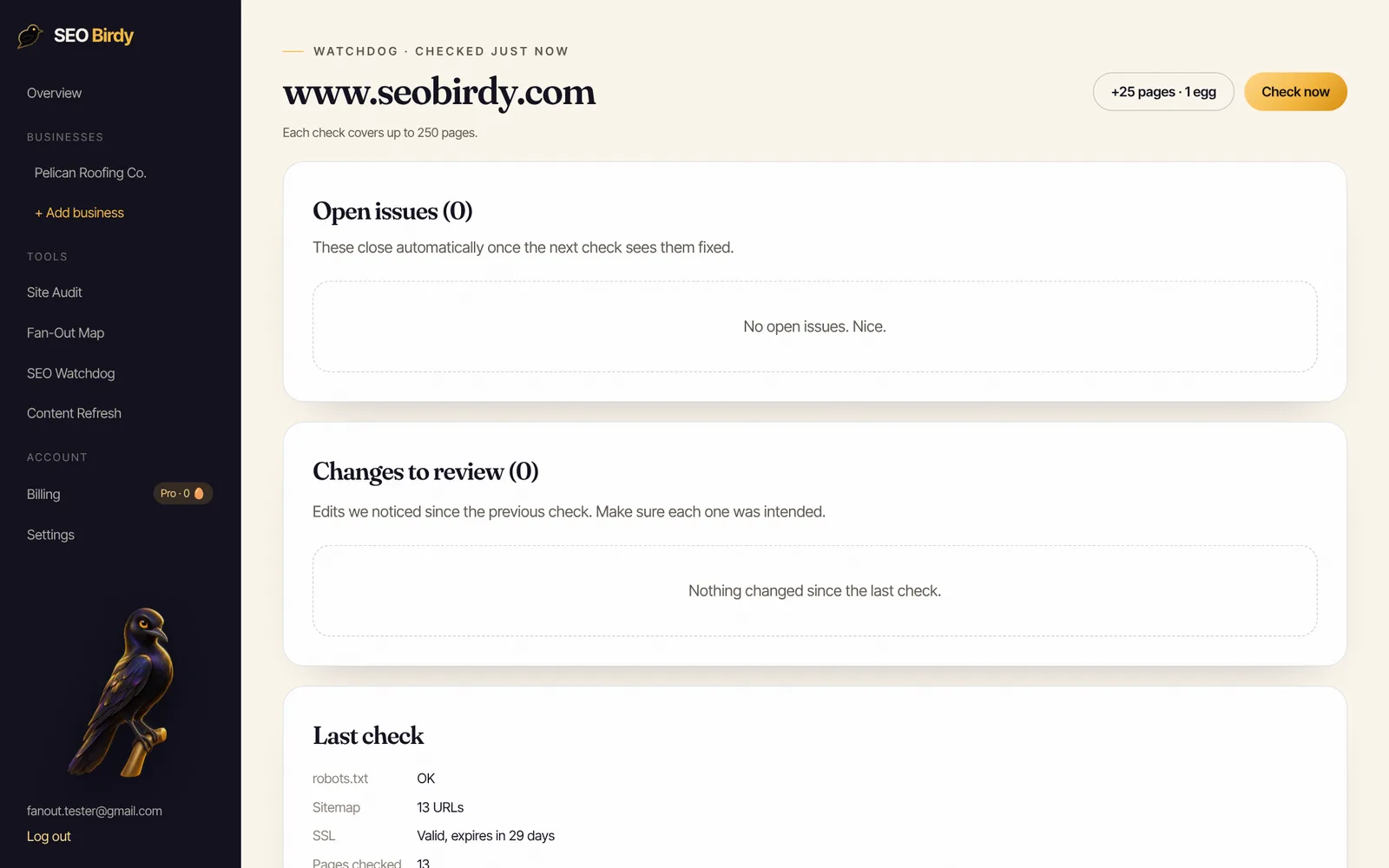
Catch a stray noindex the day it appears. SEO Watchdog checks your pages, robots.txt, sitemap and SSL every day and emails you in plain English when a noindex tag or header, a broken page or a robots.txt block shows up, before Google drops the page.
See SEO Watchdog →Watchdog is part of the paid plans, starting with Starter at 50 pages on one site (see pricing). For the rest of the site-level checks that keep pages crawlable and indexable, work through our technical SEO checklist, and if you're new to the reports mentioned here, start with Google Search Console for beginners.
Frequently asked questions
What does a noindex tag do?
A noindex tag tells search engines that support it, including Google and Bing, not to show the page in search results. When Googlebot crawls the page and sees the rule, Google drops the page from its results even if other sites link to it. The page stays live and reachable for anyone with the link; it just stops appearing in search.
What is the difference between noindex and nofollow?
Noindex is about the page: don't show it in search results. Nofollow is about the links on the page: don't follow them to discover other pages. You can use either on its own or combine them as noindex, nofollow, which Google also accepts as the single value none. For most pages you hide, noindex alone is enough.
Should I use noindex or robots.txt?
Use noindex to keep a page out of search results, and robots.txt to stop crawlers requesting URLs, mainly to save crawl capacity. Don't use both on the same page: if robots.txt blocks the page, Google can't crawl it, never sees the noindex, and may still index the URL from links. Google stopped supporting noindex rules inside robots.txt in September 2019.
How long does it take for noindex to work?
The page drops out after Google next crawls it and processes the tag. For a busy page that can be days; Google's documentation says that, depending on the page's importance, it may take months for Googlebot to revisit. Request a recrawl with the URL Inspection tool to speed it up, or use the Removals tool in Search Console to hide it within about a day.
Should noindex pages be in my sitemap?
No. A sitemap should list the URLs you want shown in search, and Bing's guidelines say to list only canonical URLs. A noindexed URL in the sitemap sends mixed signals and shows up as an issue in Search Console. Remove noindexed pages from the sitemap; most CMS sitemap generators do this automatically when you tick the hide-from-search setting.
Can you noindex a PDF?
Yes, but not with a meta tag, because a PDF has no HTML head. Send the rule as an HTTP header instead: X-Robots-Tag: noindex. On Apache you can apply it to every PDF with a Files block in .htaccess, and on NGINX with a location block that adds the header. Google's robots meta tag documentation includes both examples.
Does noindex work for AI search?
For Google, yes: a page must be indexed to appear as a supporting link in AI Overviews or AI Mode, so noindex keeps it out of those too. Bing says noindex keeps a URL out of Bing search, Copilot experiences and grounding results. Other AI crawlers each have their own rules, usually controlled in robots.txt with their own user-agent tokens.
We build SEO Birdy's audits and autopilots, and we test every recommendation against live search results and AI answers before we publish it. Our guides follow Google Search Central and Bing Webmaster guidelines.